
Home / Church Livestreaming / Operator Path
Operator Path · Lesson 2 of 15
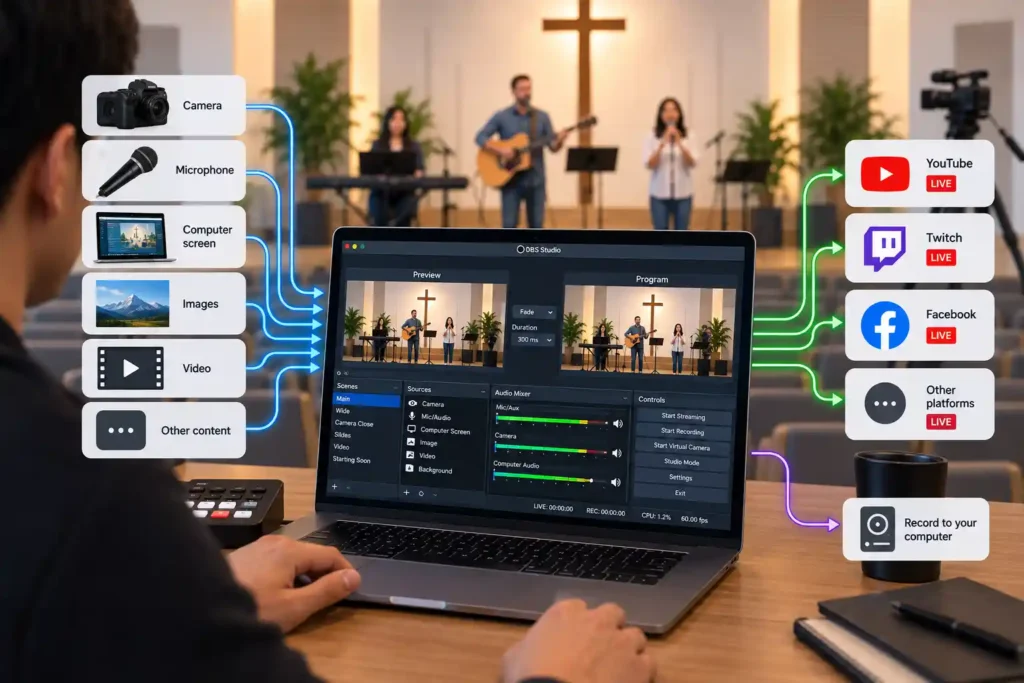
Once the signal from the camera and the microphone has reached the computer, something is needed to receive them, combine them into a single stream, and send it on to viewers. That job belongs to OBS — the software this course has chosen for exactly this step. Before touching any setting, it’s worth understanding what OBS actually does and the concepts used to describe how it works.
Software, not a device
OBS (Open Broadcaster Software) is not a separate box you can buy and cable in between other equipment. It is software, installed and running on the same computer the camera and audio connect to through the capture device and audio interface. This distinction is worth grasping right away: when someone talks about “OBS,” they mean the application running on the computer, not a physical device in the production room.
In practice, OBS does three things. It receives the video signal from the camera through the capture device, and the audio signal from the mixer through the audio interface. It combines these into a single stream — much the way a television broadcast carries picture and sound together even though they were captured on separate equipment. And it sends the result onward to the chosen streaming platform — YouTube, in this course. Every earlier stage — camera, capture device, audio interface — simply brings material to OBS, which is the point where that material becomes a single stream.
Scene and source: the two concepts everything else builds on
The OBS interface rests on two concepts, and most of what else there is amounts to combining these two.
A source is a single individual piece that makes up the stream: one camera, one text field, one still image, one audio input. Anything that should appear or be heard in the stream is its own source.
A scene is a collection of sources arranged in a particular place and at a particular size — what the viewer sees on screen at that exact moment. One scene might contain, say, the speaker camera with a small logo in the corner; another the same camera without the logo. During the stream, the operator doesn’t edit individual sources — they switch between already-built scenes with a single click.
This distinction matters because it changes what actually happens during the stream. Building the picture — what’s shown, where, at what size — is done beforehand, calmly, with no viewers watching. During the stream, only one decision remains on the picture side: which prepared scene to switch to next. The operator still keeps following audio, connection stability, and the service’s progress throughout — preparing scenes in advance doesn’t remove those tasks, it only removes the need to rebuild the picture mid-stream.
OBS also has an optional “Studio Mode” that adds a separate preview window: the next scene can be prepared and checked calmly before going live. It isn’t OBS’s default — without it, selecting a scene sends it live immediately — but this course recommends using it for that preview, since it supports the same decision-reducing principle as scenes built in advance.
Why fewer scenes is better than many
Because scenes are chosen live, every extra scene is one more thing the operator has to recognize quickly mid-stream. Finding the right one in a list of ten in a second is much harder than in a list of three or four — especially if it’s been weeks since they last sat at the equipment.
For this reason, this course recommends a handful of deliberate scenes for a first system — for example, a speaker camera, a wide shot, and one backup scene for technical failures — not dozens of experimental versions accumulated over time. A scene that clearly isn’t needed should be removed or folded into another. Fewer scenes doesn’t mean fewer possibilities — it means the decisions that remain are easier to make correctly at exactly the moment it matters.
Consider a new volunteer who opens OBS for the first time just before a stream starts and sees ten scenes left over from earlier experiments. Not knowing which one is correct, they start the stream late, on the wrong picture. With a few clearly named scenes, the same situation would resolve in seconds.
The stream key: why it's saved once, not typed in again every time
For OBS to know where to send the stream, it needs a stream key — a long, unique identifier that the streaming platform issues for each channel. The stream key works a bit like an address and an ID at the same time: it tells OBS where to send the picture and sound, and at the same time proves that the stream is authorized to reach that particular channel.
Most streaming platforms offer two kinds of keys: a persistent, reusable key, and a one-time key tied to a single scheduled event. This course recommends the persistent key precisely because it doesn’t need recreating every week: it’s entered into OBS once and saved in the program’s settings, not copied by hand again before every stream — that would be an extra, error-prone step at exactly the moment everything else should already be ready. Because the stream key effectively works like a password to the channel, it is never shared freely or shown, for example, in a screenshot: anyone who gets hold of it could send content to that same channel.
Why OBS specifically
OBS was chosen for this course for three reasons. It’s free, keeping total system cost low precisely where software expenses would otherwise be needed. It has a large, international user base, so a solution to almost any problem has already been written up by someone else, regardless of the church’s country or language. And it supports dynamic text and graphics — song lyrics, a speaker’s name, small graphic elements — allowing for later growth without replacing the whole system. More on this in its own article later; for now it’s enough to know the feature exists and is waiting once the system is ready for it.
This article doesn’t walk through which menu holds which setting. Interface details change with OBS version updates more often than this course does, so they live in their own, separately updated quick-reference guide. Here it was enough to understand what OBS does and why its concepts are built the way they are.
What to Remember
- OBS is software that runs on a computer — it receives the picture and sound, combines them, and sends the result onward.
- A source is a single piece (a camera, text, an image); a scene is a ready-built combination that the viewer sees at that exact moment.
- Building the picture is done in advance by planning scenes — during the stream, only one decision remains on the picture side: which scene to switch to. The operator still keeps following audio, the connection, and the service’s progress the whole time.
- A handful of deliberate scenes is safer than ten — fewer choices means less room for error at exactly the moment there’s no time to spare.
- The stream key is saved once in OBS’s settings, and is never shared or typed in by hand again every week.