
Home / Church Livestreaming / Operator Path
Operator Path · Lesson 14 of 15
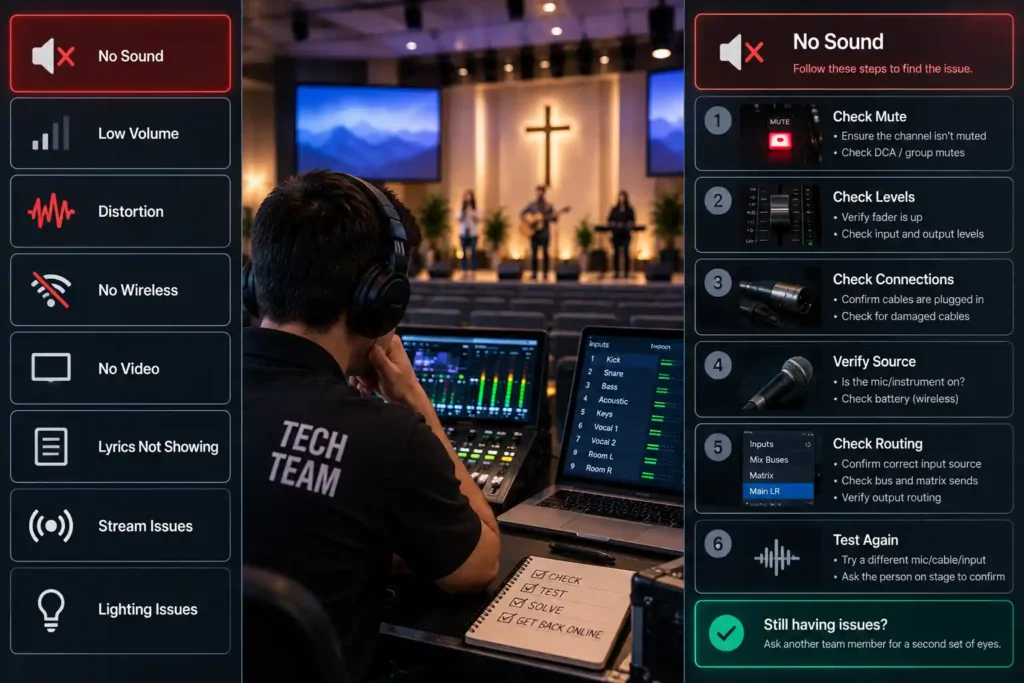
At some point, something will go wrong in every church’s broadcast — the picture freezes, the audio drops out for a moment, or the connection stutters. That isn’t a sign of a bad system; it’s a normal part of live broadcasting. What matters isn’t whether a disruption happens, but how the operator acts during that moment. This article walks through the most common situations as a ready-made “if X, do Y” list that doesn’t need to be worked out from scratch mid-broadcast.
A rehearsed response beats panic
When something fails mid-broadcast, the first reaction is often confusion: what just happened, and what should be done now. If the answer hasn’t been worked out in advance, the operator has to invent a solution at the exact moment the audience is watching — the worst possible time to think clearly.
This course’s principle is simple: the most common failure situations are worked through and rehearsed in advance, for example in a regular practice session, not only when they happen for real on a Sunday morning. Once the response has been rehearsed, the operator no longer has to decide what to do — they simply carry out a step already worked out beforehand. This is the same principle of reducing in-the-moment decisions that runs through this whole course in camera angles and audio levels — here too, it means a pre-planned response, not figuring it out live.
Consider a situation where, partway through worship music, camera 1 suddenly freezes on a single frame. The operator doesn’t stop to think about the cause — they switch to camera 2’s picture in the rehearsed way and keep the broadcast going. The viewer notices only a brief camera switch, not a technical problem.
When the picture freezes or disappears
A camera picture freezing or disappearing is one of the most common disruptions. As mentioned earlier, in a two-camera system the other camera also serves as a safety shot: if a second camera is available, switch to it right away. What’s new here is the next step — if only one camera is in use, or if both cameras turn out to be unreliable, go straight to the backup shot (covered below) instead of trying to fix the camera while the broadcast is still running.
Only after the broadcast is it worth figuring out whether the cause was, for example, a loose cable or a fault in the camera itself — that isn’t something to resolve mid-broadcast.
When the audio disappears
Losing audio is usually noticed faster than a picture problem, because the viewer reacts to it immediately. The first and quickest check is always physical: is the cable between the audio interface and the mixer still connected, and does OBS’s audio meter show any level at all. A large share of audio dropouts are exactly this — a loose connector or an accidentally switched audio source in OBS — not something more complicated.
Audio disappears partway through a hymn. The operator glances at OBS’s audio meter — it reads zero. A quick look at the mixer reveals that the audio cable has come loose; it’s pushed back in, and the audio returns within a few seconds.
If the level does show on the meter but no audio is still audible in the stream, check that the correct audio source is selected in OBS and not, for example, a muted channel. Note that switching to the backup shot doesn’t fix an audio dropout — it only changes the picture, not the audio. If the problem isn’t solved by these quick checks (cable, audio source, mute), switch to the backup shot AND display clear text over it about the situation (for example, “Audio will return shortly”), so the viewer knows it isn’t their own device — don’t keep broadcasting silently as if nothing were wrong.
When the connection drops
A connection problem usually shows up clearly in OBS: the software reports that the connection has dropped and tries to reconnect automatically, repeatedly, over an extended period — there’s no need to rush this or restart it manually. If the drop is brief and the original broadcast hasn’t been ended on the streaming platform’s side, the connection typically returns to the same broadcast that’s already running: the viewer sees only a brief pause in the picture, not the broadcast ending.
A new broadcast event is only needed if the original broadcast has genuinely ended on the streaming platform’s side — not when it has merely stuttered briefly. This can be seen from the platform’s own management view: if the broadcast still shows as running, it’s worth waiting for OBS’s automatic reconnection. Only if the broadcast shows as ended is the next step to start a new broadcast event.
When to stop trying
Every disruption has a point beyond which continuing to try live starts to hurt more than it helps. This course’s recommendation is simple: if the first, rehearsed fix doesn’t produce a result within a short time, move straight to the fallback plan instead of trying the same thing over and over.
In practice, the fallback plan means one or more ready-made backup shots — a still image with text such as “Technical difficulty, one moment” or “Broadcast resuming shortly.” This kind of image is built into OBS as its own scene ahead of time and tested before the broadcast, so switching to it is a single, ready-made action, not a new decision made in the middle of a crisis. Once the actual problem is solved, the broadcast continues from the point it was headed to before the disruption.
Why this list is deliberately simple
This isn’t a technical troubleshooting manual — a deeper look at, say, network settings or a camera’s internal error codes doesn’t belong here. The reason is the same as elsewhere in this course: the system and its instructions are designed so the broadcast doesn’t depend on one specialist. If resolving a failure required deep technical understanding, in practice only one person could do it — and avoiding exactly that dependency is something this course aims for throughout the whole system, not only in equipment choices. An “if X, do Y” list works because any trained volunteer can follow it without first needing to understand why the problem occurred.
What to Remember
- A rehearsed response beats panic: the most common failure situations are worked through and rehearsed in advance, not only live.
- Picture freezes or disappears → switch to the other camera if one is available; otherwise go to the backup shot.
- Audio disappears → check the cable and OBS’s audio source first, not deeper troubleshooting mid-broadcast; if the problem doesn’t resolve quickly, switch to the backup shot AND explain the situation with text — a camera switch alone won’t bring the audio back.
- Connection drops → let OBS try to reconnect first, and move to a new broadcast in a controlled way only if the connection doesn’t return within a reasonable time.
- When the first fix attempt doesn’t work quickly, switch to a ready-made backup shot instead of trying again and again.