
Home / Church Livestreaming / Operator Path
Operator Path · Lesson 3 of 15
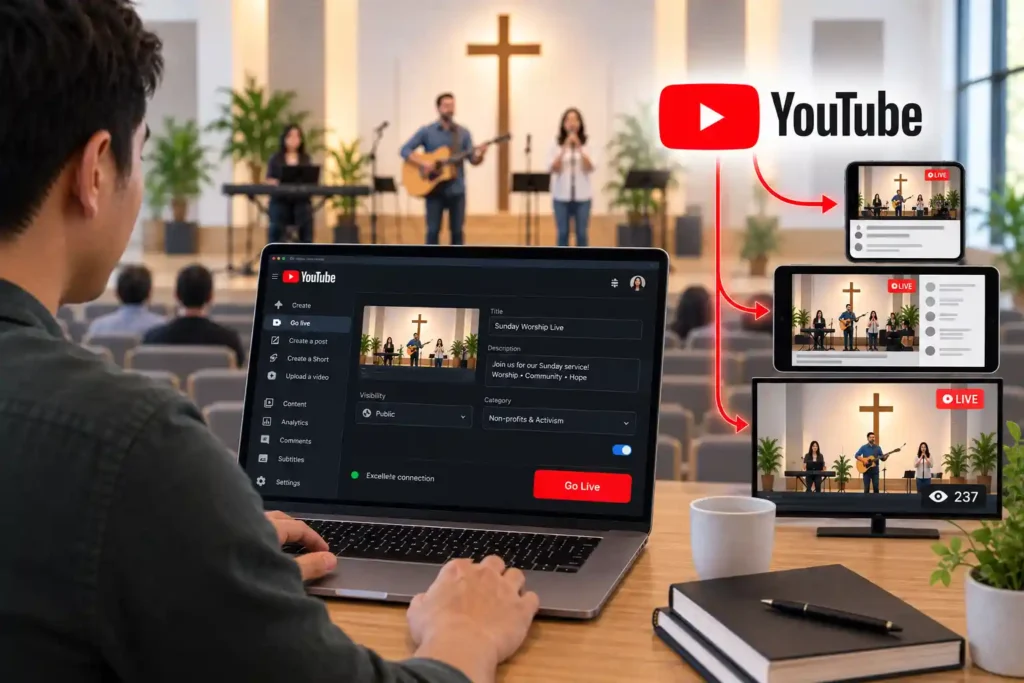
OBS Studio assembles the picture and sound into a finished stream, but someone still has to receive it and distribute it to viewers. In this course, that place is YouTube. Before you press “publish,” it’s worth understanding three things: what connects your computer to your specific stream, how an event is prepared in advance, and what to check at the last moment before viewers are let in.
Why YouTube specifically
In this course, YouTube is the primary streaming platform for three reasons. It’s available almost everywhere, to nearly every viewer, without a separate app or account. Using it as a streaming platform is free. And it has broad support for production software, including OBS Studio, so the connection between computer and platform is well established and well documented. This doesn’t mean YouTube is the only option that works — it means it’s this course’s chosen starting point, because it best fits the needs of a small church: no extra costs, no extra barriers for the viewer.
The stream key: the link between computer and stream
As mentioned in the previous article, OBS needs a stream key to know where to send the stream: a long, random string of characters that’s entered into OBS’s settings once and not typed in again every week. This course uses a persistent, reusable key for exactly this reason — platforms often also offer a one-time key tied to a single event, but that would require a new key for every stream.
The stream key works on the same principle as a key to a real lock: anyone who has it can send content to the stream belonging to your church’s own account, without any separate password or other confirmation. For this reason, the key is never shared publicly, never put in a message, screenshot, or shared document, and never read aloud even within an internal team conversation. If the key accidentally ends up in the wrong hands — for example, left visible in an old instruction sheet still in circulation — it must be replaced immediately with a new one from the platform’s own settings. The old key stops working the moment a new one is created, so simply noticing the problem isn’t enough: the replacement has to happen right away, not just at the next scheduled stream.
Consider a situation where a stream key has been left visible in an instruction sheet saved to a folder shared with the whole team. Once this is noticed, the key is replaced immediately, and a new instruction sheet is written without the key — just a reference to where it can be found safely.
Scheduling the event: ready before Sunday
Many people assume a stream starts from scratch every time: open the platform, come up with a title, and press “start now.” This works, but it pushes an unnecessary number of small decisions into the exact moment when the operator’s attention should be elsewhere — checking picture and sound.
A better approach is to schedule the streaming event in advance, for example a few days before Sunday, or even as a recurring weekly event. A scheduled event already has its title, description, and privacy setting ready, and it has its own link that can be shared with the congregation ahead of time — before the stream has even started. When Sunday arrives, the operator no longer needs to decide anything about the stream’s basic details: they open the already-scheduled event and start streaming in OBS — the link between the event and OBS was already made at the scheduling stage. This reduces the number of decisions made live in exactly the same way as camera framing or audio levels prepared in advance elsewhere in the system: the preparation happens calmly ahead of time, so that the moment itself can stay simple.
What to check before publishing
Three things are always worth checking before a stream is opened to the audience, no matter how many times this has already been done before.
The first is the privacy setting. A stream can be intended as fully public, or it can be restricted, for example, to only those with the link. The wrong setting means either that no one can find the stream, or that it reaches a wider audience than intended.
The second is the description and title. These don’t need to be complicated, but they need to be current — the wrong date or last week’s topic in the description looks careless and can confuse a viewer looking for the right stream.
The third is preview before going public. Most platforms, YouTube included, show the operator the upcoming picture and sound before the stream opens to the audience. This is the last chance to notice if the picture is on the wrong source, the audio is missing, or OBS is sending a scene that was being prepared instead of the intended program output while it was still meant to be in preview. Only once all three have been checked should the stream be opened to the audience.
This course’s precise, step-by-step guide to which menu holds which setting lives in a separate, more frequently updated quick-reference guide — a platform’s interface changes from time to time, but these three things to check stay the same.
Other platforms alongside YouTube
Some churches want to reach viewers elsewhere too, for example on Facebook, alongside YouTube. This is possible: the same stream can be shared to multiple platforms at once without the operator needing to run two separate streams. This course, however, does not teach this in detail — it’s a later extension worth adding only once the basic routine on a single platform has become established.
What to Remember
- The stream key is a personal identifier that links OBS to your specific stream — it’s never shared, shown, or written down anywhere shared.
- The key is usually entered only once, during setup, not at every stream.
- Scheduling a streaming event in advance means the title, description, and privacy setting are ready before Sunday, rather than decided at the last minute.
- Before publishing, always check three things: the privacy setting, whether the description is up to date, and the picture/sound preview.
- Running other platforms, such as Facebook, alongside YouTube is possible later, but it isn’t part of learning the first system.